
Accessible UI UX design is a test you can run on a screen you already have, not a promise that a checklist makes a product legal or complete. This page shows what to write down before you ship a control, which W3C pages to open, and which claims this article will not make. It is general information for designers and developers, not legal advice and not a medical guide. If a lawyer, a regulator, or your own accessibility specialist disagrees with this page, follow them.
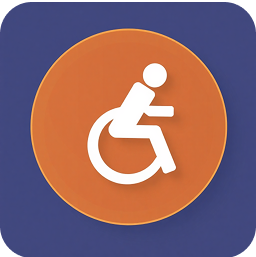
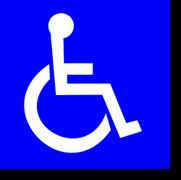
The photograph is the International Symbol of Access on Wikimedia Commons. The original symbol design is by Rehabilitation International. This file is by Jacklau96 and is in the public domain. It is not a generated picture and it is not a laptop keyboard. Media Icons may earn a commission from qualifying purchases made through links on this page, at no extra cost to you.
Accessible UI UX design starts with one control
Pick one button, one link, or one form field. Do not start with the whole product. The W3C Web Accessibility Initiative explains the basics on WAI fundamentals. Open that page. This article does not restate their definitions or their audience counts. Your job on this card is narrower: can a person reach this control, name it, and tell what happened after they used it?
The rules people usually cite live in the Web Content Accessibility Guidelines. Open the version your contract names. If the contract does not name one, write “not specified” on the card and ask the person who owns the contract. This page will not pick a version for you and will not quote a contrast ratio. The ratio, if you need one, is on the WCAG page for the version you opened.
- Control: the visible label, copied as printed.
- Role: button, link, or field, in the words the interface uses.
- Name: what a screen reader would need to say. If you do not know, leave it blank and test.
- Keyboard: whether you reached it without a pointer, and whether you could leave it.
- Result: what changed on the screen after you activated it.
Keyboard, name, and state
Unplug the pointer, or ignore it. Tab to the control. If you cannot land on it, the card fails before any color talk. If you can land on it but cannot see where you are, the focus state is the next line on the card. Do not invent a pixel size. Write “focus visible” or “focus not visible” from what you saw.
Then read the accessible name. A button that is only an icon needs a name in text that assistive technology can use. WAI’s pages on names and labels are the source. This article will not paste an attribute recipe as if it were the only legal markup. If your component library already documents the pattern, follow that document and link it on the card.
After you activate the control, write the result in one sentence. “The dialog opened” is a result. “It felt smooth” is not. If the result is only a color change, say so. Color alone is a known failure mode. The WCAG page is where that rule is written. Do not restate a formula here.
Text you can read without guessing
Read the label out loud. If you need the brand voice guide to decode it, the label is doing too much work. Plain words help more people than a clever verb. This is a writing check, not a reading-level score. This page will not assign a grade.
Headings should match the outline a person would hear if they jumped by heading. If the page has a heading that is only there for looks, say so. Do not add a heading because a blog told you to. Add it when the outline is lying.
Motion and media
If something moves on its own, find the WCAG section on animation and pause. This article will not describe a medical threshold and will not tell you who might be harmed. Open the guideline and write whether the motion can be stopped. Video needs a text alternative you can point at: captions, a transcript, or a note that neither exists. “We will add it later” is a blank line, not a pass.
How to test without a fake score
WAI’s test and evaluate page is the method. Use it. Automated tools can list some failures. They cannot finish the card. A keyboard pass that you did yourself is a note. A tool score with no note is not.
Write the tool name and the date you ran it. Do not paste the tool’s percentage into the article or the card as if it were a WCAG result. If the tool and your keyboard disagree, trust the keyboard for whether you can reach it, and keep the tool output as a second line.
Ask one person who does not use the product every day to try the same control. Their confusion is data. It is not a user study and it is not a substitute for testing with assistive technology when your contract requires that. If you do not have that tester, write “not done” instead of implying it happened.
What this page will not claim
It will not say how many people a change will reach. Population figures belong on the source that counted them, not in a design blog. It will not say the work improves search ranking. Some markup habits overlap with what a crawler can read. Overlap is not a rank promise.
It will not say a lawsuit is coming or is avoided. Laws differ. The Americans with Disabilities Act is a statute you can look up with a lawyer if your product is in scope. This article does not interpret it. WCAG is a W3C guideline. A contract may require it. A blog cannot.
It will not name a contrast ratio, a target size, or a timing limit. Those numbers live in the WCAG version you opened. Copying them here is how a stale number ships. If your design system prints a number, cite the design system and the WCAG section it claims to follow, and check that the section still says that.
It will not say an icon library is accessible because the icons are pretty, or because another article on this site shows how to put an icon in a page. An icon that names a control is a separate test: the name, the focus, and the result. Do that test on the control, not on the file.
A card you can reuse on the next screen
Keep one card per control until the screen is boring. Boring is good. Line one is the control’s visible label. Line two is keyboard: reached, or not. Line three is the accessible name, or blank. Line four is the result after activation. Line five is the WCAG version the contract named, or “not specified.” Line six is the WAI page you actually opened.
When a line is blank, the control is not done. Do not average the screen. One unnamed icon fails the screen even if the headings are fine. Fix the blank line or write down who owns the fix and the date you asked.
If a teammate wants a single score for the release, show them the stack of cards instead. A score hides the blank name. The card does not.
Errors, forms, and the empty state
When a form fails, write the message next to the field and in text, not only in a color. Read the message out loud. If it says invalid and nothing else, it is not done. Say which field and what the person can do next, in the product’s own words. This page will not supply the error copy. Your content owner does.
An empty state is still a screen. If the list has no rows, the empty message needs the same name and keyboard test as a button. A picture of an empty box with no text fails the card. Write “text present” or “text missing.”
Do this before you argue about visual polish. Polish can wait. A control nobody can name cannot.
Where this sits next to other work
File size, icon grids, and how a library gets into the page are different jobs. They matter. They do not answer whether this button has a name. Finish those jobs in their own notes. Come back to this card before you call the interface inclusive.
The practical close is the same test. Accessible UI UX design means you opened the W3C page your contract points at, you tried one control without a pointer, and you wrote the name and the result. The symbol on this page is a reminder of the job. It is not a certification.